
Scheduling in Growbot: Run Now, Schedule Actions, active hours, and pausing
Every Growbot action goes through the Actions Queue. This guide covers Run Now and Schedule Actions, active hours, pausing, editing scheduled actions, and what happens when actions miss their time.
Why
Instagram notices accounts that do a lot very quickly, or at hours when nobody is awake. Scheduling lets you spread follows, likes, comments, and unfollows across days and across the hours you choose, so your activity looks like a person's and stays under Instagram's limits.
Because scheduled actions are saved to your Growbot account, you can set up a week of work once, close the laptop lid, and pick up where you left off. This guide walks through every scheduling control in Growbot 2.9.9 and explains when to use each one.
How to use it
How scheduling works
Everything Growbot does from a queue goes through the Actions Queue, whether you choose Run Now or Schedule Actions. Each action is saved to your Growbot account with a time, so the list survives page refreshes, browser restarts, and crashes. Your own browser then runs the actions one at a time as each time comes around.
For an action to run, all of these have to be true:
- you are signed in to your Growbot account (Settings → Growbot Account)
- an instagram.com tab is open (it can sit in the background, and the Growbot panel can be closed)
- that tab is logged in to the Instagram account the action belongs to
- the queue is not paused
- if active hours are on, the current time is inside them
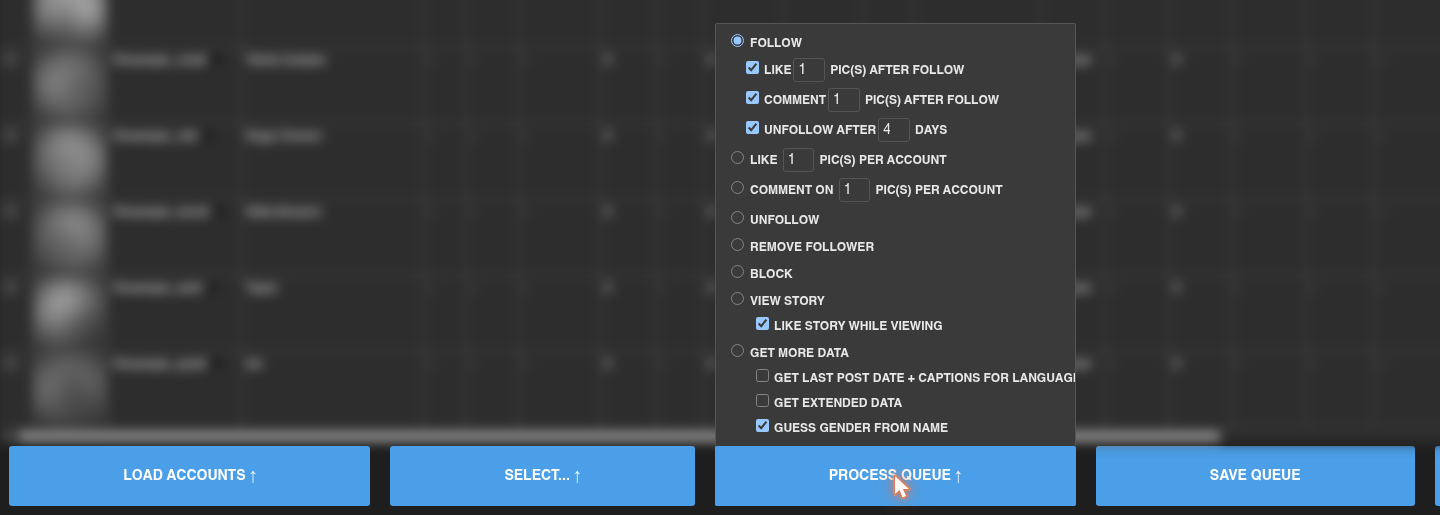
Pick what to do with the queue
- Load accounts into the Accounts Queue and filter them the way you want.
- Hover over Process Queue and choose the action: Follow (with optional Like, Comment, and Unfollow After extras), Like or Comment on posts, Unfollow, Remove Follower, Block, View Story, or Get More Data.
- Click Process Queue. Nothing runs yet. Growbot asks how to queue the actions.
Run Now or Schedule Actions
The dialog tells you how many actions it is about to create, how busy your queue already is, and how long Run Now would take.
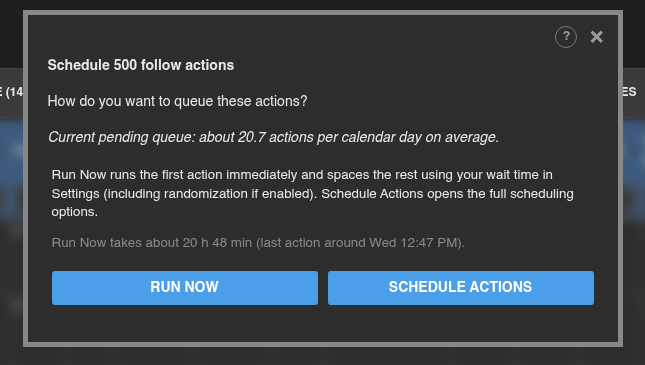
- Run Now starts the first action right away and spaces the rest using Wait N seconds after follow/unfollow/like in Settings → Delays, randomized by the percentage you set there. The line under the buttons estimates how long the whole batch takes and when the last action runs.
- Schedule Actions opens the full options below, where you choose how many actions run per day and when.
Use Run Now for small batches you want done today. Use Schedule Actions for anything larger, so the work is spread over days instead of packed into one long session.
When Run Now meets your active hours
If active hours are on and Run Now would start outside them or run past their end, Growbot stops and explains before creating anything:
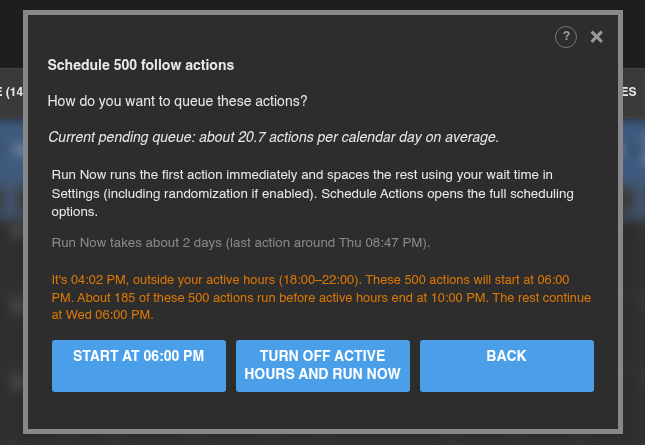
- Start at (or OK) keeps your active hours. Actions start at the next start time, and anything that doesn't fit before the end continues the next day.
- Turn off active hours and run now switches active hours off in Settings and runs the batch immediately.
- Back returns to the previous choice without creating anything.
Schedule Actions options
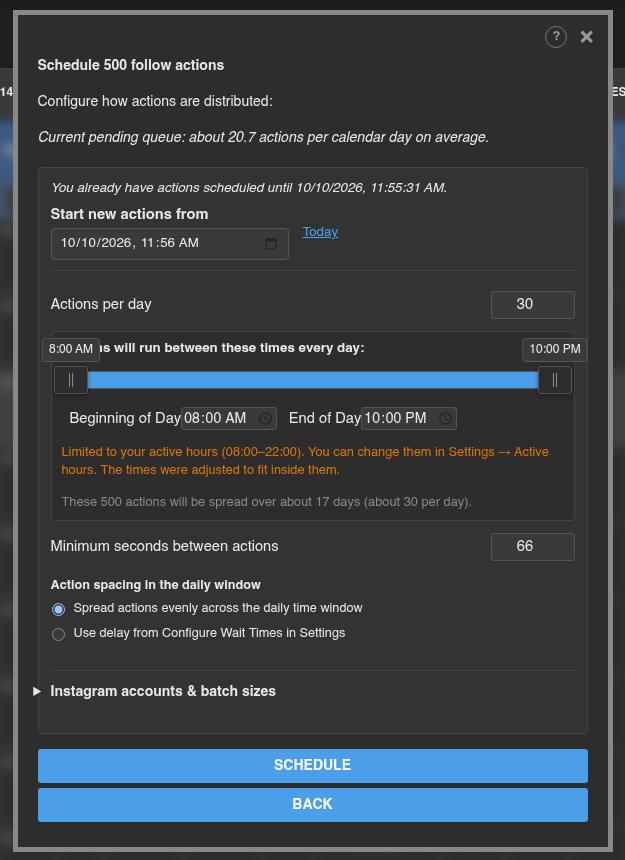
- Start new actions from: shown when you already have pending actions. By default new actions start after your existing ones. Click Today to start from now instead.
- Actions per day: the most actions Growbot schedules on any one day. The note underneath tells you how many days the batch will take.
- Beginning of Day and End of Day (or drag the slider): the part of each day these actions are spread across. When active hours are on, this is limited to your active hours, and Growbot tells you if it had to adjust the times.
- Minimum seconds between actions: the shortest gap Growbot allows between two actions. If the day is too full to keep this gap, Growbot moves the extra actions to the next day.
- Action spacing in the daily window: Spread actions evenly across the daily time window fills the whole window with even gaps. Use delay from Configure Wait Times in Settings spaces them by your Settings delay instead of stretching them across the whole window.
- Click Schedule to create the actions, or Back to return without scheduling.
Scheduling across several Instagram accounts
Open Instagram accounts & batch sizes in the same dialog to share a batch between accounts you have used with Growbot.
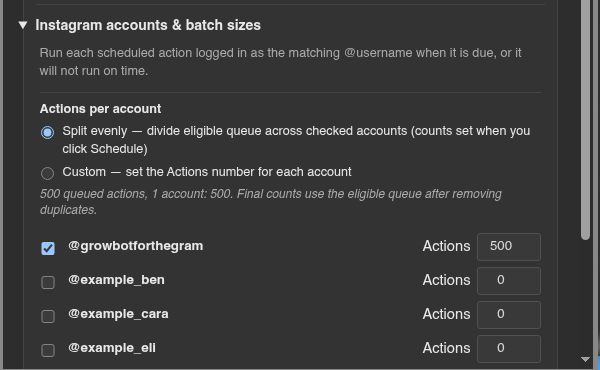
- Check each account that should take part.
- Choose Split evenly to divide the batch equally, or Custom to type how many actions each account gets.
- With two or more accounts checked, choose Sequential (fill each account's share in order) or Concurrent (alternate between accounts through the day).
Each action runs only while the browser is logged in to its own account. Actions for an account you are not logged in to wait until you switch to it.
Active hours
Active hours stop the Actions Queue from running outside the times you choose, for example while you sleep. They are off by default. Turn them on in Settings → Active hours:
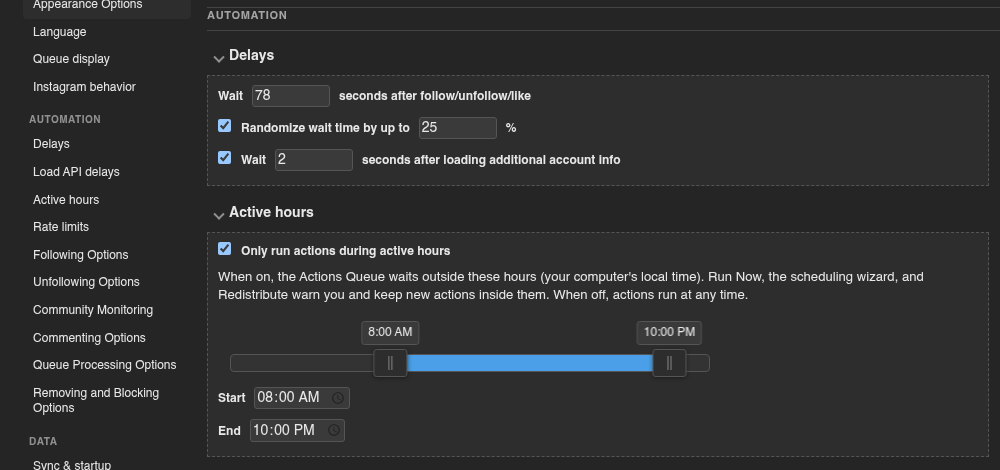
- Check Only run actions during active hours.
- Set Start and End, or drag the slider. Times use your computer's clock. A window that crosses midnight, such as 22:00 to 06:00, works too.
While active hours are on:
- Actions that come due outside the hours wait, and start when active hours begin. The Log notes how many actions are waiting and when they will start.
- Run Now, Schedule Actions, Redistribute, and the single-action form all warn you when something would fall outside the hours.
- Time spent outside active hours doesn't make actions "late", so you won't get the past-due dialog each morning.
If you change your active hours while actions are already scheduled outside the new times, Growbot offers to move them:
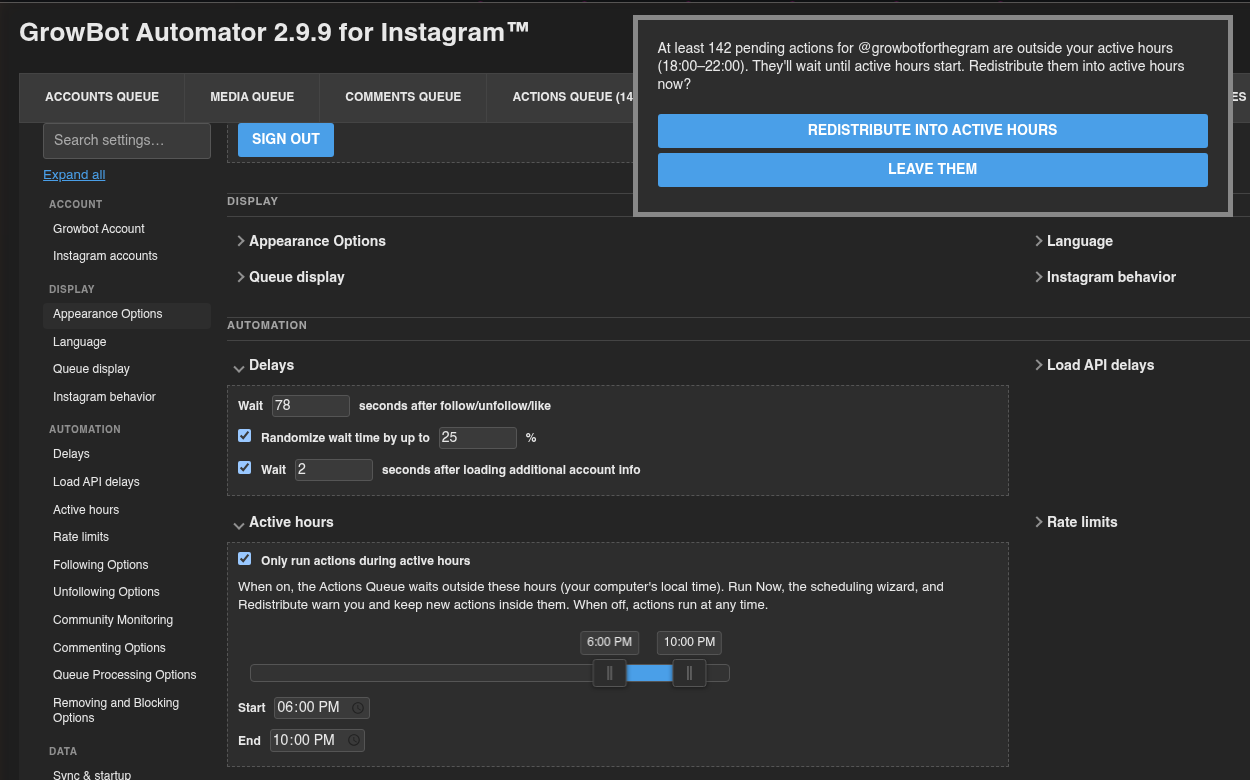
Redistribute into active hours spreads those actions across the new hours. Leave them keeps their times, and they wait until the hours come around.
If you set a daily window in an earlier version, Growbot 2.9.9 asks once whether to turn active hours back on with your old times. Choose Turn back on or Keep off.
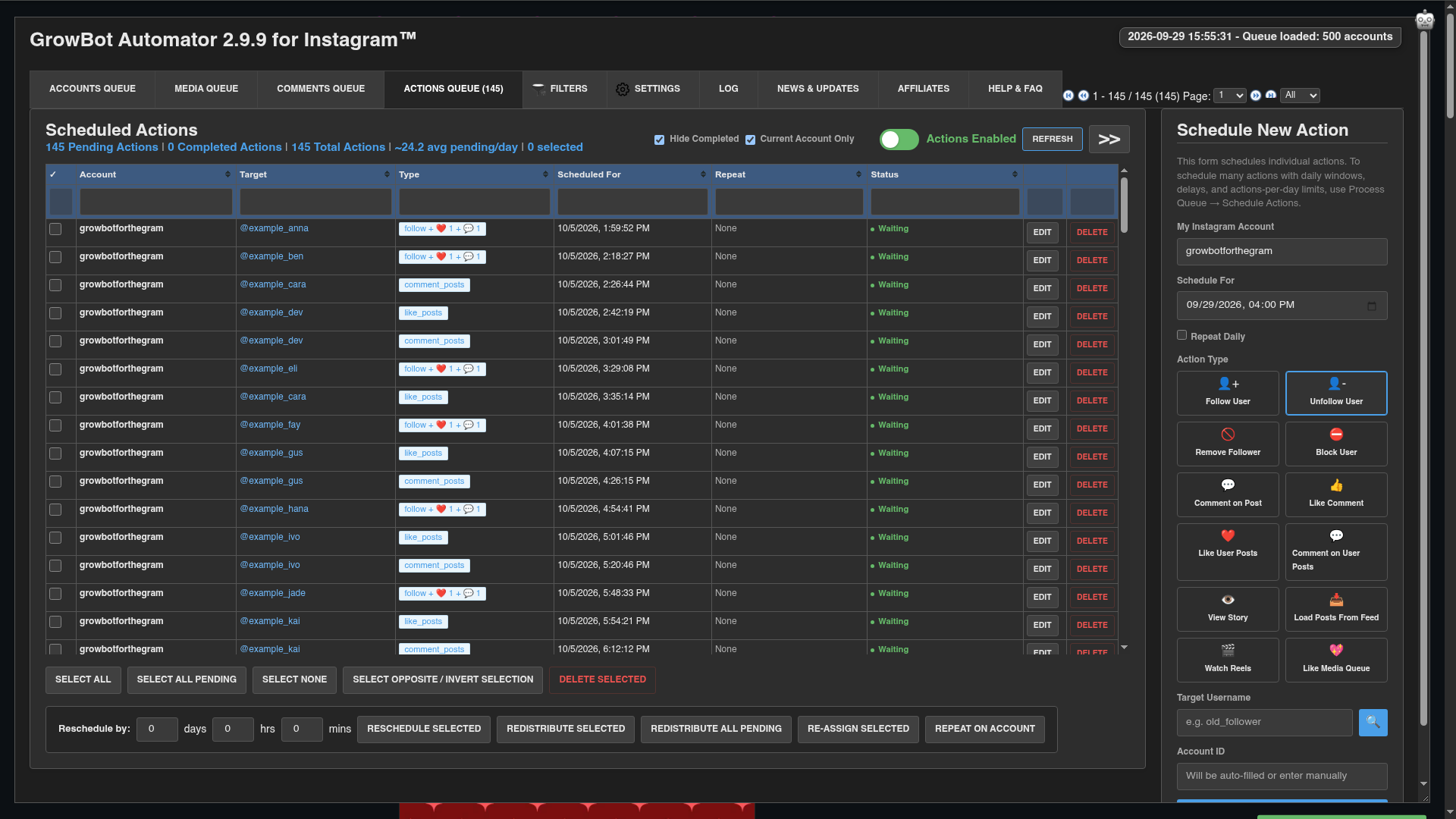
Reading the Actions Queue tab
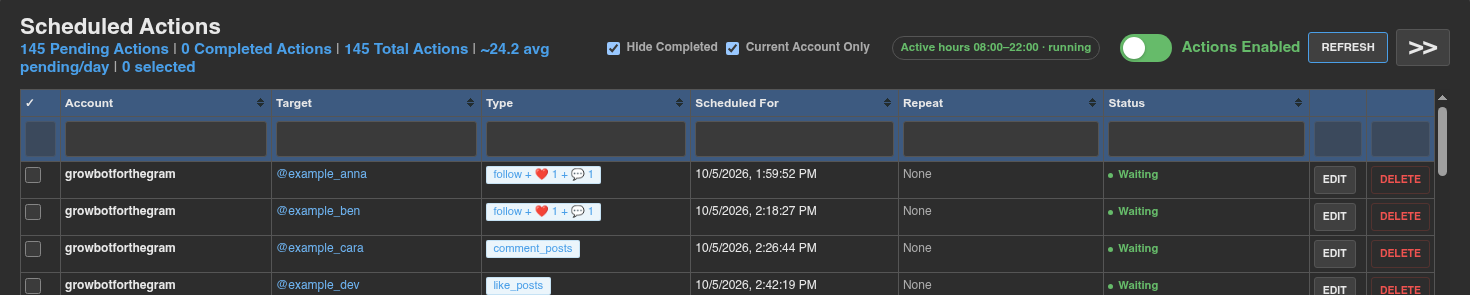
- The counts along the top show pending, completed, and total actions, plus the average number of pending actions per day.
- Hide Completed and Current Account Only filter the list. The filter boxes under each column heading search within the list.
- When active hours are on, a badge shows them: running inside the hours, or resumes with the next start time outside them. Click it to jump to the setting.
- The Status column shows Waiting for actions that will run at their time, Waiting · runs with a time when active hours will hold an action back, Paused while the queue is paused, and Completed once an action has run.
- Refresh reloads the list. The >> button hides or shows the single-action form on the right.
Pausing the queue
Click the Actions Enabled switch to pause. It turns red and reads Actions Paused.
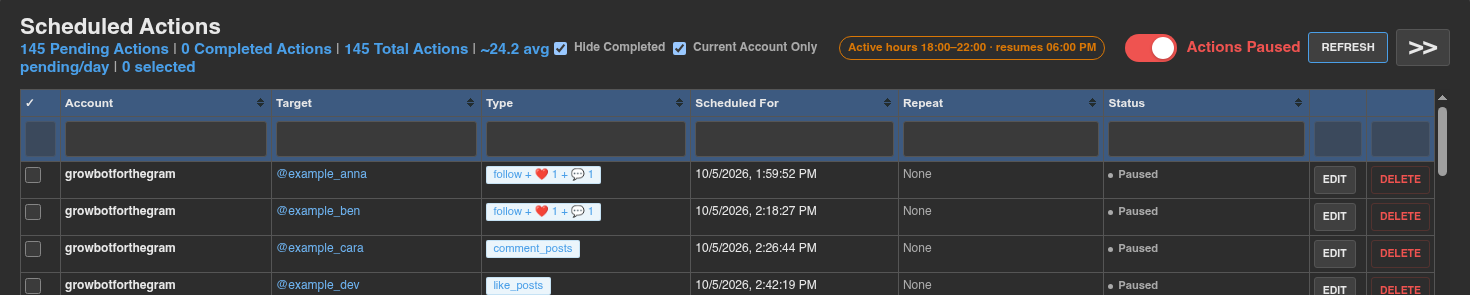
- The pause applies to the Instagram account you are logged in as. Other accounts keep running.
- It lasts until you switch it back on. Nothing is deleted, and waiting actions show Paused.
- While paused, the Log notes how many due actions are waiting because of the pause.
- When you resume, anything that came due during the pause runs one at a time with normal spacing. If a lot piled up, Growbot may offer to redistribute them (see below).
Pausing is for when you want Growbot to hold off, for example while you use Instagram by hand or after Instagram warns you. When Instagram rate-limits an action, you don't need to pause: Growbot moves the affected actions later by itself, using the waits in Settings → Rate limits.
Changing scheduled actions
Tick the checkbox on each row you want to change, or use the selection buttons, then pick an action from the bar under the list:

- Select All ticks every row on the page. Select All Pending ticks every pending action, on every page. Select None and Select Opposite / Invert Selection do what they say.
- Delete Selected removes the selected actions.
- Reschedule by N days, hrs, and mins, then Reschedule Selected: moves the selected actions later by that amount.
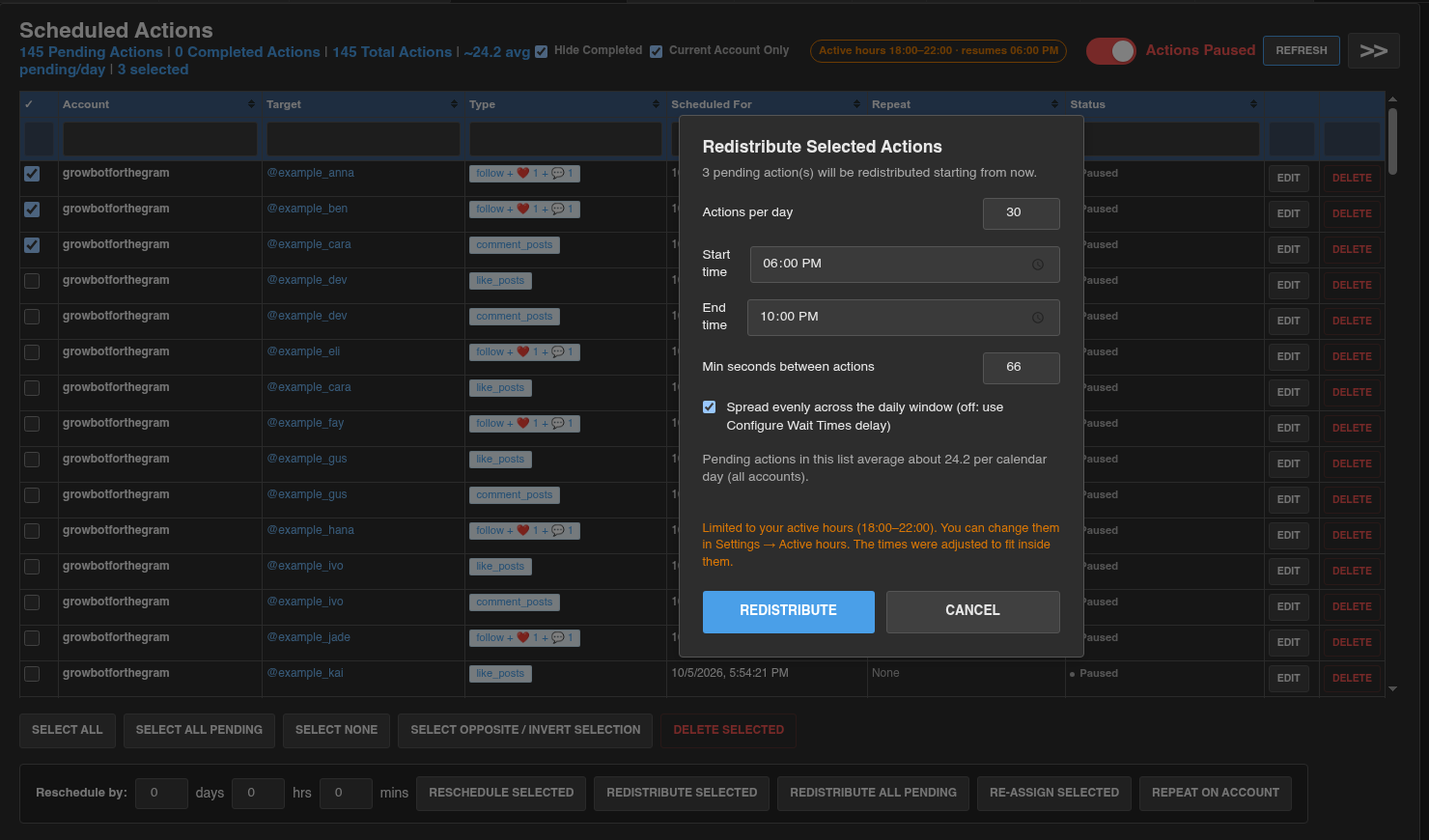
- Redistribute Selected: opens a dialog to spread the selected actions again with a new Actions per day, Start time, End time, and Min seconds between actions, starting from now.
- Redistribute All Pending: after a confirmation, re-spreads every pending action for this account using your saved scheduling rules. There is no dialog, so use Redistribute Selected with everything selected if you want to change the rules first.
- Re-assign Selected: moves the selected actions to another Instagram account. They run as that account from then on.
- Repeat on account: copies completed actions onto another Instagram account as new pending actions. The originals stay where they are.
- Edit and Delete on a row change or remove that single action.
Scheduling a single action
The Schedule New Action form on the right adds one action at a time. Pick the action type, fill in the target, set Schedule For, and click Schedule Action. Check Repeat Daily to run it every day at the same time.
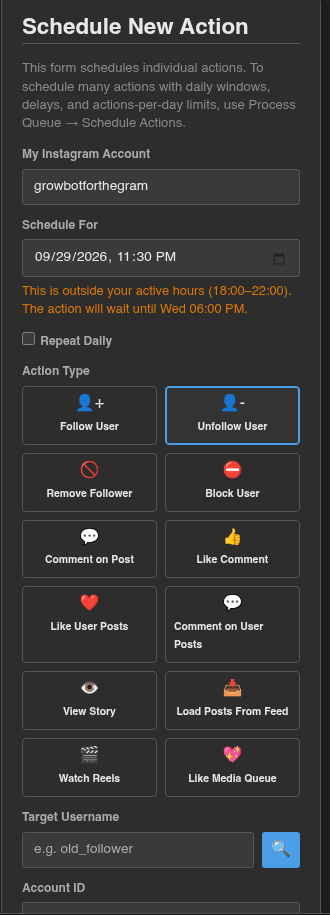
If the time is outside your active hours, the form tells you when the action will actually run. A Repeat Daily action set outside your active hours won't run while active hours are on.
When actions miss their time
If your computer was asleep or Instagram was closed, several actions can come due at once. When more than four actions are due and at least one is over ten minutes late, Growbot asks what to do:
- Redistribute All Pending spreads every pending action across your active hours again, following your actions-per-day and minimum-delay rules.
- Skip Missed deletes only the late actions and keeps the rest on schedule.
If this keeps happening while your computer is awake, Chrome is probably putting the Instagram tab to sleep. Leave Keep Instagram tabs running in the background checked in Settings → Instagram behavior, and add www.instagram.com under Always keep these sites active in Chrome's Settings → Performance.
Tips
- For a new or quiet account, start with about 20 to 30 Actions per day and a Minimum seconds between actions of 300 or more. Raise the numbers slowly once a week passes without rate limit messages in the Log.
- Turn on active hours to match when you are normally awake. Actions at 4 AM every night are one of the easier patterns for Instagram to spot.
- Run Now batches also land in the Actions Queue, so pausing the queue stops them too.
- Changed your mind about a batch? Select its actions, then Delete Selected. Nothing you schedule is permanent until it runs.
- If you manage several Instagram accounts, check Current Account Only to see just the actions for the account you are logged in as.